COOPERATION MODEL
ARTIFICIAL INTELLIGENCE
PRODUCT ENGINEERING
DevOps & Cloud
LOW-CODE/NO-CODE DEVELOPMENT
INDUSTRY
FRONTEND DEVELOPMENT
CLOUD DEVELOPMENT
MOBILE APP DEVELOPMENT
LOW CODE/ NO CODE DEVELOPMENT
EMERGING TECHNOLOGIES



 6 mins read
 Last updated February 23, 2026
Building an iOS app that feels native requires more than clean code, it demands adherence to Apple's design philosophy. The Apple Human Interface Guidelines serve as the definitive resource for creating apps that users trust and enjoy, covering everything from navigation patterns to accessibility standards across all Apple platforms.
Whether you're designing your first iPhone app or refining an existing iPad experience, understanding these guidelines separates polished products from frustrating ones. Apple's documentation outlines specific principles for iOS, macOS, watchOS, and visionOS, giving developers and designers the framework they need to build consistent, intuitive interfaces that feel right at home on any Apple device.
At Brilworks, our mobile development team references these guidelines daily when building custom iOS and cross-platform applications for startups and enterprises. This article breaks down the core principles, provides practical UI kits and resources, and shares best practices to help you create apps that meet Apple's standards and exceed user expectations.
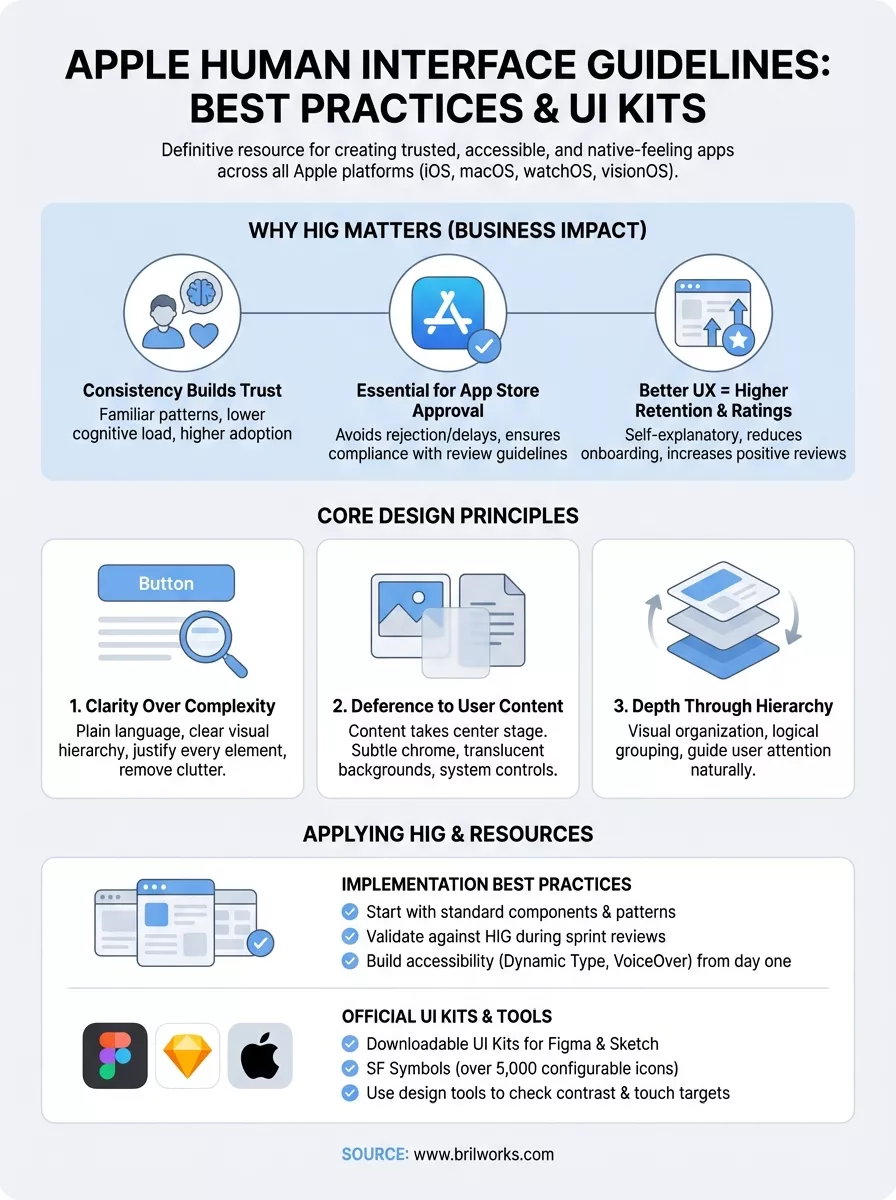
Your app's success on the App Store depends heavily on how well you follow Apple's design standards. The Apple Human Interface Guidelines define the quality bar that separates apps users love from those they immediately delete, making them essential reading for anyone building for iOS, macOS, watchOS, or visionOS. These principles directly influence App Store approval, user retention rates, and overall product quality in ways that impact your bottom line.
When you follow Apple's interface standards, your app inherits familiar interaction patterns that users already understand from other Apple applications. They know how to navigate, expect specific gestures to work in predictable ways, and recognize standard UI components instantly without learning curves. This consistency reduces cognitive load and creates immediate comfort, which translates to higher adoption rates and fewer support requests.
Apple's ecosystem thrives because every native app shares a common design language, from Safari to Settings. Users trust apps that feel like they belong on their devices, and violating these patterns creates friction that competitors can exploit. Your interface choices signal professionalism and attention to detail, qualities that distinguish premium products in crowded app categories where first impressions determine whether someone keeps or uninstalls within minutes.
Apple's review team explicitly checks whether your app adheres to Human Interface Guidelines during the submission process. Apps that ignore standard navigation patterns, misuse system controls, or create confusing user flows face rejection or revision requests that delay launch timelines and cost development resources. The review guidelines reference HIG principles directly, making compliance non-negotiable for getting your app live.
Following Apple's design standards isn't optional if you want to ship products through the App Store without lengthy approval cycles and repeated rejections.
Beyond initial approval, major updates undergo the same scrutiny. Apps that gradually drift away from guidelines risk future rejection even after years of successful operation, forcing expensive redesigns under tight deadlines. Staying aligned with HIG principles from day one prevents technical debt and ensures smooth update cycles as Apple evolves its platforms and introduces new interaction paradigms like widgets or app clips.
Users reward apps that respect Apple's usability principles with higher ratings and positive reviews, both critical factors in App Store search rankings and organic discovery. Well-designed interfaces that follow established patterns require less explanation, reducing the need for extensive onboarding flows that increase bounce rates during first launch. Your app becomes self-explanatory when it leverages conventions users already understand.
Retention metrics improve dramatically when your interface matches user expectations formed by years of iOS experience. Apps that force users to relearn basic interactions or hide common functions in unexpected locations see elevated uninstall rates within the first week, a crucial window that determines long-term viability. Meeting HIG standards means your app competes on features and value rather than fighting against confusing design choices that frustrate users before they experience your core offering.
Accessibility features built into Apple's standard components come free when you use recommended UI elements, expanding your addressable market without additional development effort. Apps that build custom controls often sacrifice compatibility with VoiceOver, Dynamic Type, and other assistive technologies, excluding users who depend on these features and potentially violating accessibility requirements that Apple increasingly enforces through both guidelines and App Store policies.
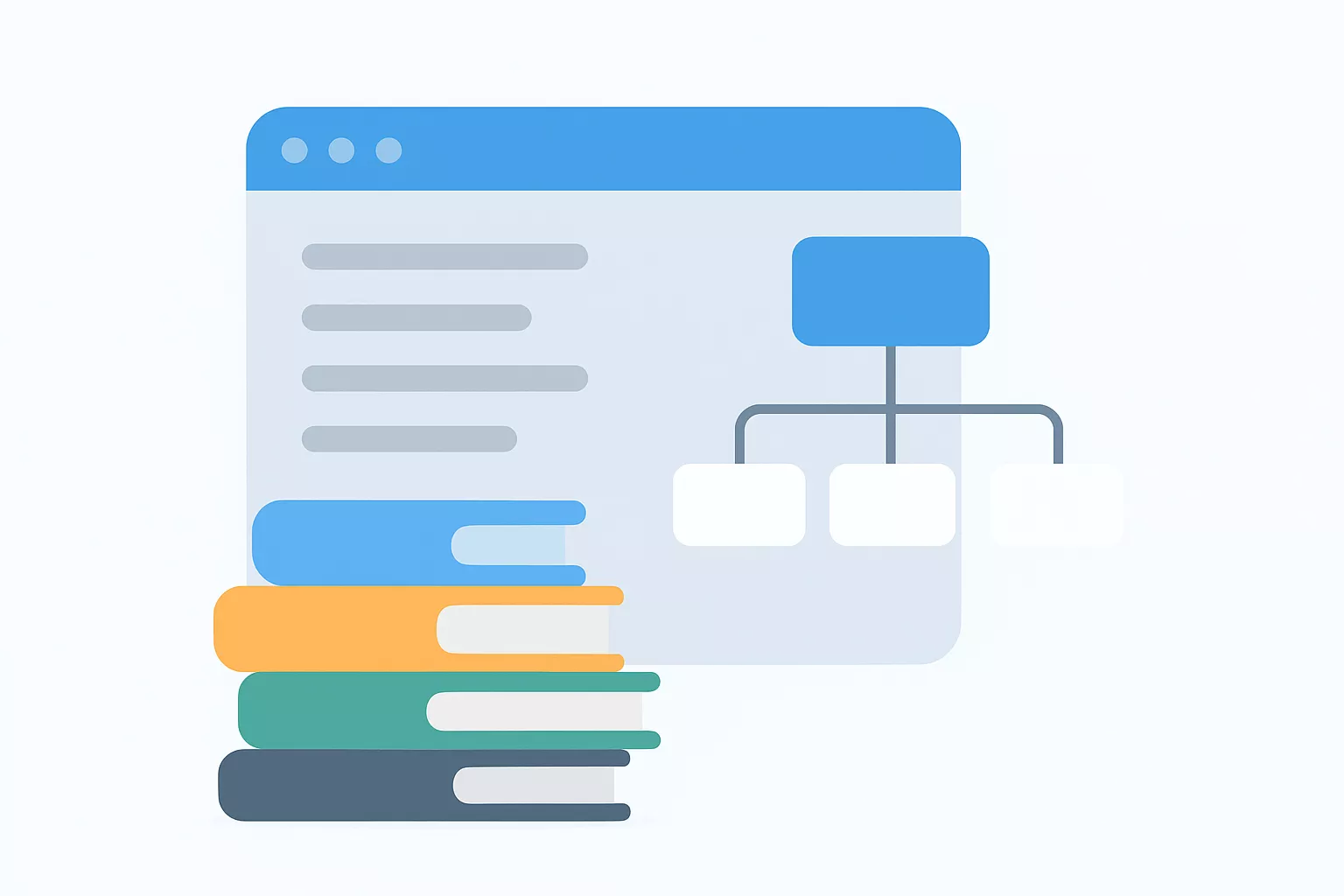
The Apple Human Interface Guidelines organize design principles into platform-specific sections, each covering the unique interaction models and technical capabilities of iOS, macOS, watchOS, tvOS, and visionOS. You'll find foundational concepts that apply universally alongside detailed specifications for individual components, patterns, and technologies that define each operating system. Apple structures this documentation to serve both designers creating initial mockups and engineers implementing final interfaces, making it a comprehensive reference throughout your product development cycle.
Each platform section breaks down into Foundations, Patterns, Components, and Technologies, creating a logical hierarchy that helps you locate relevant guidance quickly. Foundations cover core principles like color systems, typography, and layout grids that establish your app's visual language. Patterns address common user flows such as navigation, searching, and data entry, while Components provide specifications for buttons, toggles, sliders, and other standard UI elements you'll implement repeatedly across screens.
Technologies sections explain how to integrate platform features like widgets, Live Activities, SharePlay, and CarPlay into your interface design. Apple updates these sections frequently as new capabilities launch, so you need to check for changes when adopting APIs introduced in recent iOS or macOS releases. The documentation includes code samples and design resources that show correct implementation rather than just describing theoretical best practices.
Apple's search functionality lets you filter by platform, component type, or specific topic, saving time when you need answers during active development sprints. The site's left sidebar navigation mirrors the hierarchical structure, allowing you to browse related topics without jumping between disconnected pages. You can bookmark frequently referenced sections for faster access when reviewing standard measurements or interaction specifications that inform daily design decisions.
The HIG works best when you consult it proactively during planning rather than reactively after building interfaces that violate standards.
Cross-references throughout the documentation connect related concepts, helping you understand how individual guidelines fit into broader design systems. For example, the button component page links to accessibility requirements, color usage principles, and layout recommendations that all influence proper button implementation. This interconnected structure prevents you from missing critical details that affect multiple aspects of your interface design.
Apple's design philosophy centers on three core principles that distinguish exceptional apps from mediocre ones: clarity in communication, deference to user content, and depth through hierarchy. These aren't just aesthetic preferences but functional requirements that shape how users interact with your app across all Apple platforms. The Apple human interface guidelines translate these principles into specific interface decisions, component choices, and interaction patterns that you must implement consistently throughout your product.
Your interface should communicate purpose instantly without requiring users to decipher abstract icons or decode ambiguous labels. Apple expects you to use plain language for buttons and actions, choosing "Delete Message" over generic "Remove" or confusing iconography that forces users to guess functionality. Visual hierarchy should guide attention naturally, making primary actions prominent while secondary options remain accessible without cluttering the screen.
Every element you place on screen needs justification. Remove decorative components that don't serve user goals, and consolidate related functions into logical groups rather than spreading controls across multiple locations. Whitespace becomes a design tool rather than wasted space, giving users room to focus on content and actions that matter most to their current task.
Apple demands that your app's content takes center stage while interface elements recede into the background. You achieve this through translucent backgrounds, subtle borders, and system-standard controls that feel native rather than custom-designed to showcase your brand. Users open your app to engage with their photos, documents, or data, not to admire your creative navigation system or proprietary UI components.
Your interface exists to enable user actions and surface content, not to compete for attention with decorative flourishes or unnecessary visual complexity.
Accessibility isn't an optional feature you add later but a baseline requirement that Apple enforces through both guidelines and App Store review. You must support Dynamic Type so text scales properly for users who need larger fonts, implement proper contrast ratios for readability, and ensure VoiceOver users can navigate your entire app through assistive technologies. Apps that treat accessibility as an afterthought face rejection and require expensive retrofitting to meet standards that should have informed initial design decisions.
Applying the Apple human interface guidelines effectively requires integrating them into your workflow from the earliest design phases through final testing. You can't bolt on compliance after building custom interfaces that violate core principles, so treat HIG as a design constraint that informs every decision rather than a checklist you review before submission. Teams that succeed with Apple platforms consult the guidelines during feature planning, wireframing, visual design, and development rather than treating them as post-development documentation.
Apple provides a comprehensive library of system controls and patterns that handle most common interface needs without requiring custom development. You should exhaust these options before investing time in proprietary components that demand extra maintenance and testing. Standard buttons, navigation bars, tab bars, and list views come with built-in accessibility support and platform consistency that custom solutions rarely match without significant engineering effort.
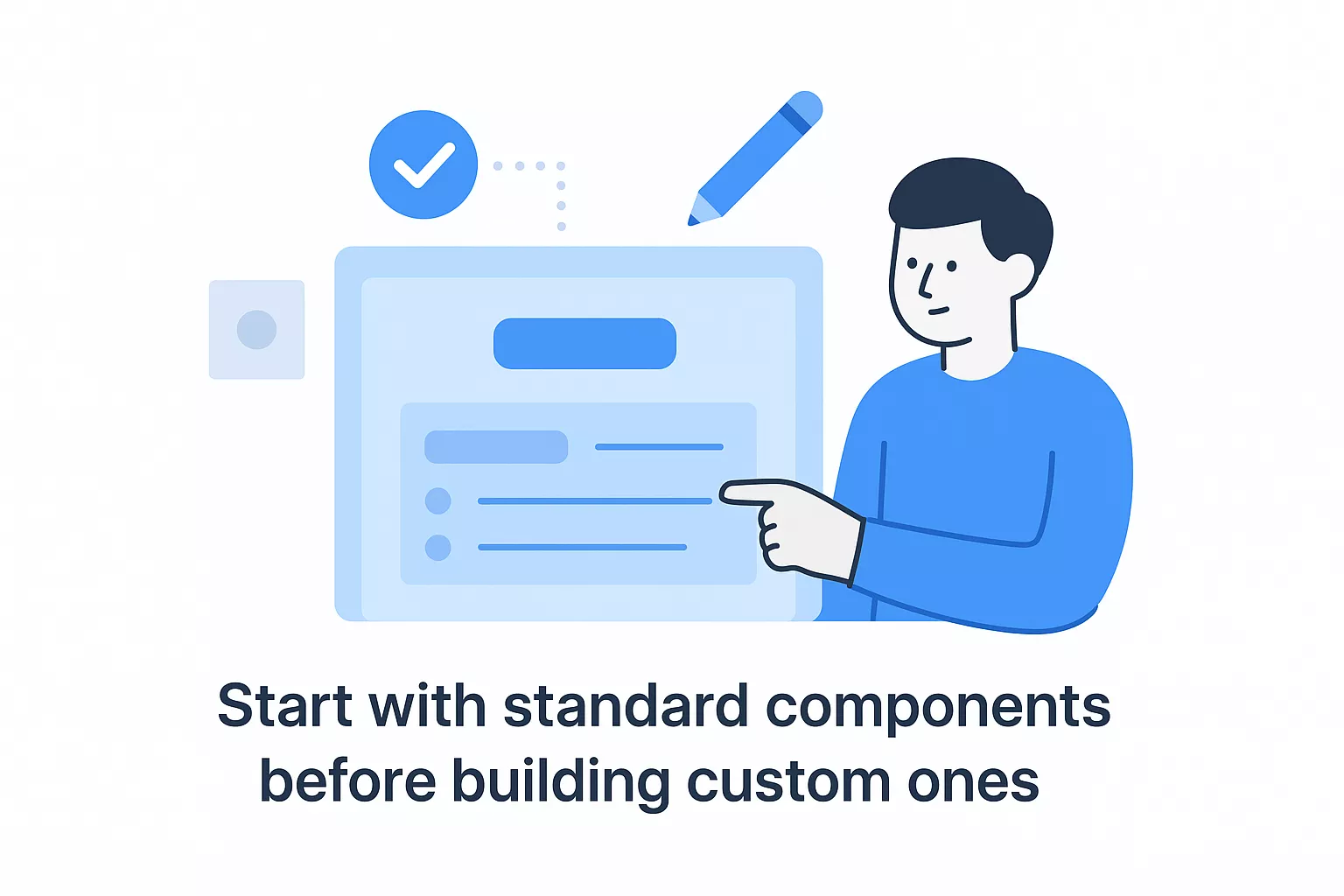
When your design calls for something unique, first check whether combining standard components achieves the same goal. You can customize system elements through tint colors, typography, and layout while preserving their core behavior and accessibility features. Reserve fully custom controls for situations where your app's core value proposition demands differentiation that standard components can't deliver.
Building on Apple's foundation saves development time while ensuring your app inherits platform updates and accessibility improvements automatically.
Design and engineering reviews should include explicit HIG compliance checks alongside functional requirements and bug tracking. You need someone on your team who regularly consults the guidelines and challenges interface decisions that deviate from documented standards. This prevents accumulating design debt that surfaces during App Store review when fixing violations becomes expensive and time-consuming.
Create a checklist based on HIG sections relevant to your app's features, covering navigation patterns, typography scales, color contrast ratios, and touch target sizes. Reference specific guideline URLs in your design system documentation so developers understand the reasoning behind interface specifications rather than treating them as arbitrary rules. This shared understanding helps your team make informed decisions when adapting guidelines to unique product requirements.
Apple provides official design resources that translate the Apple Human Interface Guidelines into practical templates you can use immediately in your design workflow. These UI kits and tools eliminate guesswork by giving you pre-built components with correct dimensions, spacing, and interaction behaviors that match what Apple expects in shipping products. You'll save hours of manual specification work while ensuring your designs align with platform standards before developers write a single line of code.
Apple offers downloadable UI kits for Figma and Sketch that include every standard component documented in the guidelines, from navigation bars to form controls. These kits contain production-ready templates with proper auto-layout constraints, color variables, and text styles that adapt automatically when Apple updates design tokens in new OS releases. You can start designing immediately with components that match system appearance across light and dark modes without building your own design system from scratch.
SF Symbols provides over 5,000 configurable icons that scale properly with Dynamic Type and support multiple weights and styles. You access these symbols directly through Apple's free application, which lets you customize colors, rendering modes, and variable configurations before exporting for development. These icons integrate seamlessly with system fonts and maintain visual consistency with built-in Apple apps that users recognize instantly.
Apple's official design resources update with each OS release, ensuring your design files stay current with the latest interface patterns and components.
Figma has become the industry standard for collaborative interface design, with extensive plugin support that helps you validate designs against Apple's specifications. You can use community-built plugins to check color contrast ratios, measure touch target sizes, and preview how your designs render at different text size settings. The platform's component libraries let teams maintain consistent design systems that reference HIG principles while allowing customization for brand requirements.
Sketch remains popular among iOS designers who prefer native macOS applications with robust symbol management and plugin ecosystems focused specifically on Apple platform design. Both tools support exporting assets in multiple resolutions for different device densities, generating style guides that developers reference during implementation, and creating interactive prototypes that demonstrate navigation flows before committing to code.
The apple human interface guidelines provide the essential framework for building apps that meet Apple's quality standards and user expectations across all platforms. You need to consult these guidelines throughout your design and development process, not just before App Store submission. Start with standard components, validate your interfaces against documented patterns, and use Apple's official UI kits to accelerate your workflow while maintaining compliance.
Success on Apple platforms requires balancing creativity with adherence to established conventions that users trust. Your app should prioritize clarity, defer to user content, and build accessibility into every component from the start rather than treating it as an afterthought.
If you need help building iOS applications that follow Apple's design standards while delivering exceptional user experiences, Brilworks' mobile development team combines technical expertise with design best practices to create apps that succeed in the App Store and meet your business goals.
The Apple Human Interface Guidelines (HIG) are Apple's official design standards and best practices for creating intuitive, consistent, and high-quality user experiences across iOS, iPadOS, macOS, watchOS, tvOS, and visionOS. The Apple Human Interface Guidelines provide comprehensive guidance on design principles, interface elements, patterns, and platform-specific considerations.
Following the Apple Human Interface Guidelines ensures your app provides a familiar, intuitive experience that aligns with user expectations on Apple platforms. Apps built according to the Apple Human Interface Guidelines have higher approval rates in the App Store, better user reviews, improved accessibility, and greater consistency with native Apple applications.
The Apple Human Interface Guidelines cover all Apple platforms including iOS (iPhone), iPadOS (iPad), macOS (Mac), watchOS (Apple Watch), tvOS (Apple TV), and visionOS (Apple Vision Pro). Each platform section within the Apple Human Interface Guidelines addresses unique interaction patterns, screen sizes, and input methods specific to that device.
The Apple Human Interface Guidelines emphasize three foundational principles: clarity (making content and functionality easy to understand), deference (letting content take center stage with subtle interface elements), and depth (using realistic motion and layering to convey hierarchy). These principles guide all design decisions in the Apple Human Interface Guidelines.
The Apple Human Interface Guidelines are freely available at developer.apple.com/design/human-interface-guidelines. Apple regularly updates the Apple Human Interface Guidelines to reflect new OS features, design patterns, and technologies, making it essential to reference the latest version during design and development.
Get In Touch
Contact us for your software development requirements
Get In Touch
Contact us for your software development requirements

Hello, we are BRILLIAN’S. Trying to make an effort to put the right people for you to get the best results. Just insight !

 503, Fortune Business Hub, Science City Road, Sola, Ahmedabad, Gujarat, India Pincode- 380060
 + 91 9313644148
 sales@brilworks.com


