One bad crash on launch day can drop your app store rating from 4.8 to 3.2 before your team even wakes up. Users don't file support tickets. They leave one-star reviews and uninstall.
Structured mobile app testing is what stands between a confident release and that scenario. Most teams know they need QA, but few have a repeatable process that actually scales across iOS and Android, covers real devices, and keeps working after the app ships.
This article gives you that process. You'll get a practical breakdown of mobile app QA types that matter, a step-by-step approach to testing before release, guidance on real-device coverage, when to automate and what tools to use, and how to monitor quality after launch. No generic overview. A working framework you can apply to your next release.
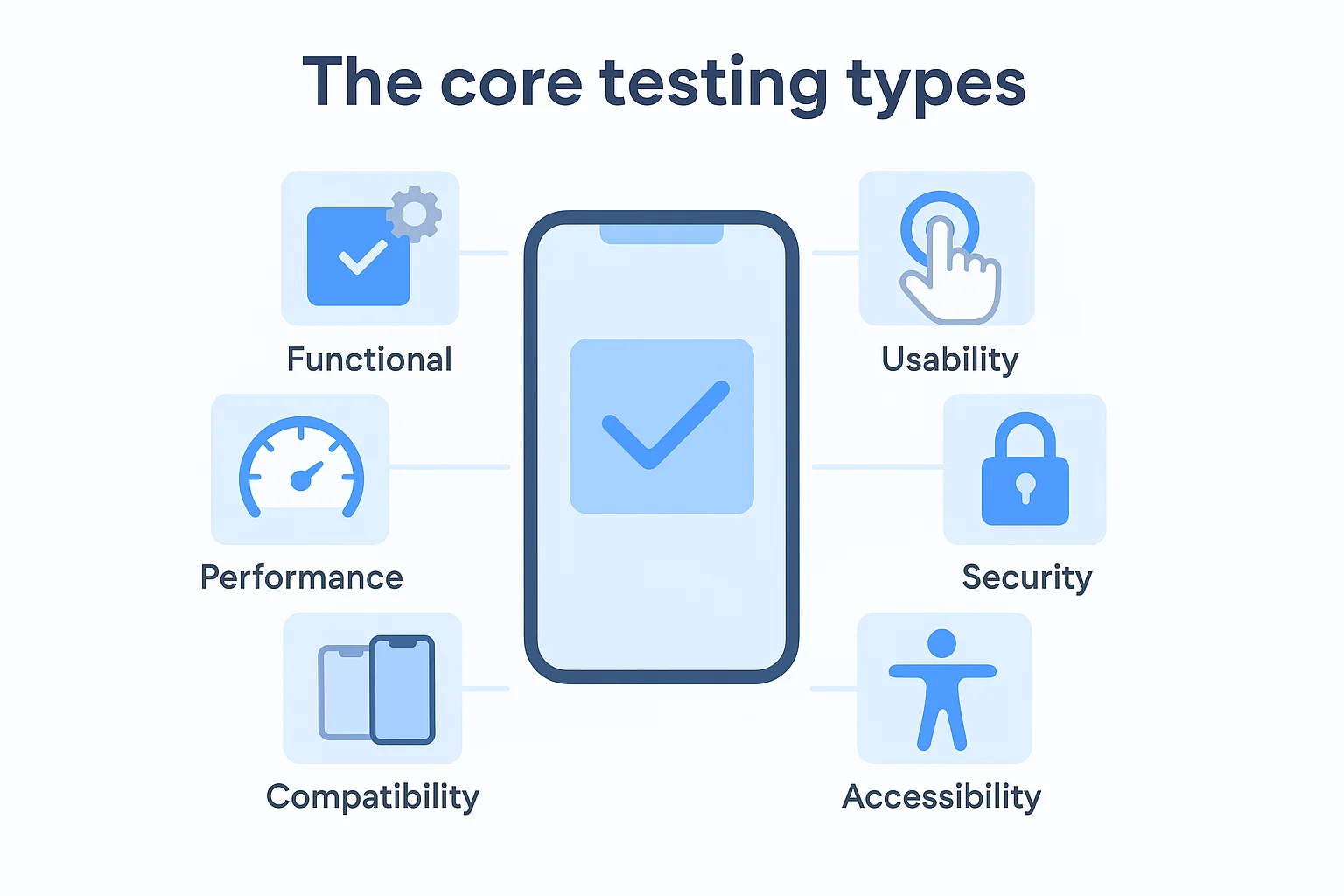
Mobile app QA covers far more ground than most teams expect. Functional checks are just the starting point. A complete testing strategy spans ten distinct disciplines, and each one catches failure modes the others simply won't surface.
The table below maps each testing type to what it validates, a concrete mobile example, and when teams typically run it:
Functional and regression testing demand the most time across any given sprint. Security, accessibility, localization, and installation checks fit better into focused audit sessions tied to release milestones rather than every single build.
One thing worth calling out: interruption handling and offline behavior often get skipped entirely, and both show up immediately in production reviews.
Manual Testing vs Automated Testing in Mobile App QA
Choosing between manual testing vs automated testing isn't really a choice. It's a resource allocation decision, and getting it wrong costs you either shipping velocity or test coverage.
| Dimension | Manual Testing | Automated Testing |
|---|
| Best use case | New features, exploratory sessions, UX judgment calls | Regression suites, smoke tests, repetitive P1 flows |
| Strengths | Catches visual glitches, broken animations, confusing flows | Speed, repeatability, runs overnight without a person |
| Limitations | Doesn't scale past a few devices or sprints | Brittle against UI changes, poor at detecting "feels wrong" |
| Mobile scenarios | Gesture-heavy onboarding, camera flows, push notification copy | Login, checkout, form validation, deep link routing |
| Maintenance effort | Low | High when UI changes frequently |
| Ideal stage | Early builds, new feature validation | Post-stabilization, active release cadence |
A practical decision framework
Keep these manual: anything gesture-heavy, anything camera-related, and your first pass through a new onboarding flow. A swipe-to-dismiss interaction or a document scan flow requires a real person to judge whether it actually feels right. No automation script catches that.
Automate these first: login, checkout, and any flow that touches payment or auth. These break often, the cost of missing a regression is high, and the UI stays relatively stable. That stability matters more than people expect.
Automation becomes cost-effective once you're running a flow more than twice per sprint on more than two devices. Below that threshold, writing and maintaining the script costs more time than the manual run.
Where teams over-automate early: onboarding. The screens change every two weeks during early product iteration, which means your scripts break constantly. Write those tests after the flow stabilizes, not before.
How to Test a Mobile App: Scope, User Flows, Risks, and Release Criteria
Before a single test case gets written, you need a plan that defines what you're actually testing, what you're not, and what "done" looks like. Skipping this step is how teams end up thrashing in the final days before launch, arguing about whether a bug is a blocker or just an annoyance.
Here's a numbered workflow to build that plan:
- Lock in your app version and target personas. Note the exact build number and define who your primary user types are.
- Map your critical user flows. Identify the three to five paths that, if broken, make the app worthless. Registration, core feature interaction, and checkout are common starting points.
- Rank your risks. Assign P1 through P3 priority to each flow based on revenue or usability impact.
- Define your device and OS scope. List supported configurations explicitly so no one debates it mid-sprint.
- Document what's out of scope. Explicitly excludes edge cases or platforms your team won't cover in this cycle.
- Set QA exit rules. Zero open blocker bugs, crash rate below 0.1%, and 100% pass rate on all P1 flows before any release sign-off.
Mobile also introduces edge cases that desktop testing never surfaces. You need to scope these early: fresh install paths, upgrade behavior from the previous production build, runtime permissions on first launch, backgrounding and foreground resume, incoming calls or notifications mid-flow, low storage warnings, low battery mode throttling, and localization rendering across right-to-left languages.
These aren't optional checks. Any one of them can break a flow that passed cleanly in your primary test run.
Real Device Testing for Mobile App Testing on iOS and Android: Device Matrix, Networks, and Edge Cases
Simulators and emulators earn their place early in development. They speed up iteration, cost nothing extra, and work fine for logic-level checks. But the moment you need to validate touch latency, camera permissions, Bluetooth handoffs, or battery-triggered throttling, you need real hardware in your hands. Real device testing is non-negotiable for any flow that touches native hardware, background execution, or platform permission dialogs.
Building your device matrix
Pull your analytics first. If you are pre-launch, use Android's distribution dashboard and iOS adoption data to identify where your target users actually sit. Build a matrix of five to eight devices that spans three variables: OS generation, screen size category, and manufacturer. Do not cluster everything on flagship hardware.
| Device | OS | Screen | Priority |
|---|
| iPhone 15 | iOS 17 | 6.1" | P1 |
| iPhone 12 | iOS 16 | 6.1" | P1 |
| Samsung Galaxy S23 | Android 14 | 6.1" | P1 |
| Google Pixel 7 | Android 13 | 6.3" | P1 |
| Samsung Galaxy A34 | Android 13 | 6.6" | P2 |
Always include one mid-range Android. That is where OEM skin conflicts, aggressive battery management, and backward compatibility failures surface most often.
Network condition checklist
| Condition | Expected App Behavior |
|---|
| Slow 3G (throttled) | UI stays responsive, loading indicators display |
| Packet loss (20-40%) | Retries silently, no data corruption |
| Offline mode | Cached content loads, offline state communicated clearly |
| Timeout scenario | Request fails gracefully, retry option appears |
| Interrupted upload | Upload resumes or prompts user to restart cleanly |
| Failed background sync | Sync queues and retries on next connection |
Platform-specific considerations
On iOS, permission prompts only fire once. If your test flow dismisses a camera or location dialog incorrectly, you have to reset device settings to reproduce it. Also watch App Store review-sensitive behaviors: apps that call private APIs or request permissions mid-session without context get flagged. Background execution on iOS is tightly restricted, so test push-triggered syncs explicitly.
Android fragmentation requires its own attention. Samsung's OneUI, Xiaomi's MIUI, and stock Android handle background processes differently. Test on at least two OEM skins alongside a Pixel device. Verify that your minimum SDK target does not quietly break anything on devices two or three OS versions behind your current target.
Structured manual session format
Run sessions against written test cases, not open exploration. Define the flow, precondition, numbered steps, and expected result before the tester touches the device. Log every deviation.
Sample bug report
| Field | Detail |
|---|
| Severity | P1 - Critical |
| Environment | Samsung Galaxy A34, Android 13 |
| Build number | v2.4.1 (build 214) |
| Steps to reproduce | 1. Open app on 3G 2. Start file upload 3. Toggle airplane mode mid-upload |
| Expected result | Upload pauses, resumes on reconnection |
| Actual result | Upload silently fails, no user feedback shown |
| Logs/Attachments | Crashlytics log, screen recording attached |
| Owner | Backend: API retry logic / Frontend: error state UI |
For apps built on cross-platform stacks, see our framework-specific testing guide for React Native and Flutter. If your app serves users in low-connectivity regions, our offline-first design guide covers architecture decisions that make these network scenarios far easier to handle. Download our bug report template to standardize defect logging across your QA team.
Automate Regression Testing in CI With the Right Mobile App Testing Tools
Your regression suite and your smoke suite are not the same thing, and treating them as interchangeable is one of the fastest ways to burn testing time on the wrong checks.
A smoke suite covers the bare minimum: can the app launch, can a user log in, does the core feature respond? Run it on every pull request. A regression suite is broader, covering every critical flow you have validated in previous releases. Run that on release branches and nightly builds, where the risk of something quietly breaking is highest.
How you pick your mobile app testing tools determines how well that split actually holds up in practice.
| Tool | Best Fit | Strengths | Trade-offs | Team Maturity |
|---|
| Appium | Cross-platform teams | Works on iOS and Android, language-flexible | Slower execution, flakier on complex gestures | Intermediate |
| XCTest | iOS-only projects | Native speed, tight Xcode integration | iOS only, requires Swift/ObjC knowledge | Intermediate |
| Espresso | Android-only projects | Fast, reliable, official Google support | Android only, tightly coupled to app code | Intermediate |
| Detox | React Native teams | End-to-end, gray-box testing model | Steeper setup, limited plugin ecosystem | Advanced |
| BrowserStack / Device Clouds | Any team needing real device coverage | Wide device matrix without hardware overhead | Cost scales quickly, network dependency | Any |
| GitHub Actions / Bitrise | CI orchestration for any of the above | Deep ecosystem integration, flexible triggers | YAML complexity, parallel job costs | Any |
Once your tools are in place, wiring them into CI looks like this in practice:
- A developer opens a pull request, which triggers the pipeline automatically
- The CI job builds the app artifact from that branch
- The pipeline provisions test environments, either a device cloud or emulators depending on the suite
- Automated tests run, smoke tests first for speed, then regression on targeted flows
- Results publish directly to the pull request as a status check
- Any failure blocks the merge until resolved
Flaky tests get quarantined separately. Tag them, assign a clear owner, and set a re-run rule of three passes before a test earns trust again. Leaving flaky tests in the main suite trains your team to ignore failures, which defeats the purpose entirely.
For a deeper look at structuring the full pipeline around mobile app testing, see our mobile CI/CD workflow guide. If you are building out automation from scratch, our automation testing resources cover tooling decisions in more detail.
Post-Launch Mobile App Testing Checklist: Monitoring, Feedback, and Continuous QA
Shipping your app is not the finish line for mobile app testing. It's where the next phase of QA begins.
Think of post-launch quality as a weekly operating rhythm, not a closing task. Your team should own specific metrics, review them on a set cadence, and have a clear playbook for when something moves in the wrong direction.
What to monitor every week:
- Crash-free session rate (example benchmark: above 99.5%, though this varies by product type)
- ANR rate on Android (example benchmark: below 0.47% to avoid Play Store warnings)
- API error rate across your core flows
- Slow screen render times and startup duration on mid-range devices
- Battery and memory regressions after each release
- Failed payment or transaction events
- App store review patterns, especially any spike in one-star ratings after a new build
These numbers tell you where your product is quietly breaking down.
When a metric moves the wrong way, act fast:
If crash rates spike after a release, your first decision is rollback versus hotfix. A rollback buys you time but signals instability to your store reviewers. A hotfix is faster to ship but requires a tight regression pack to confirm you have not introduced new failures alongside the fix. Either way, log the trigger and feed the root cause back into your sprint backlog so it informs future test coverage.
Update your regression pack after every incident. That case belongs in your automated suite permanently.
Your feedback loop closes here: app store reviews, support tickets, and production alerts should all route into your backlog triage. The teams that treat this rhythm seriously ship higher-quality updates, faster.
Conclusion
Good mobile app testing comes down to four things done consistently: scope the risks that actually matter, validate on the devices and networks your real users run, automate the regression checks that would otherwise eat your team's time before every release, and treat post-launch monitoring as part of the QA process rather than a separate concern. Get those four right and your app reaches production in far better shape than most.
If you are building on AWS infrastructure, shipping AI-driven features, or managing a complex mobile engineering stack and need a QA approach that holds up across all of it, talk to the Brilworks team. We are happy to think through the right strategy with you.