So you've built an app, tested it, and submitted it to Apple, only to have it rejected. This can be really frustrating, especially if you've been through this process before. The thing is, Apple's App Store review guidelines are super detailed and strict, and they're always updating them. This means that even if you're an experienced developer, you can still miss something important and get rejected. It might be something small, like a problem with how you're handling privacy or metadata, or maybe it's an issue with your in-app purchases. Whatever it is, it can set your whole launch back by days or even weeks, which is a big deal.
This guide breaks down exactly what Apple expects from your app submission in 2026, covering safety, performance, design, legal, and business requirements. You'll get a practical checklist, common rejection reasons, and specific steps to avoid the back-and-forth with Apple's review team.
We've created lots of custom iPhone and iPad apps for all sorts of companies, from startups to big businesses, in fields like money, health, and shopping. Our team that makes these apps has dealt with Apple's approval process many times, so we know what can go wrong. To avoid problems, we've made our own system to check for issues before we even send the app to Apple. This guide is based on what we've learned from doing this work, not just on what Apple says.
Let's walk through the guidelines section by section so your app passes review on the first submission.
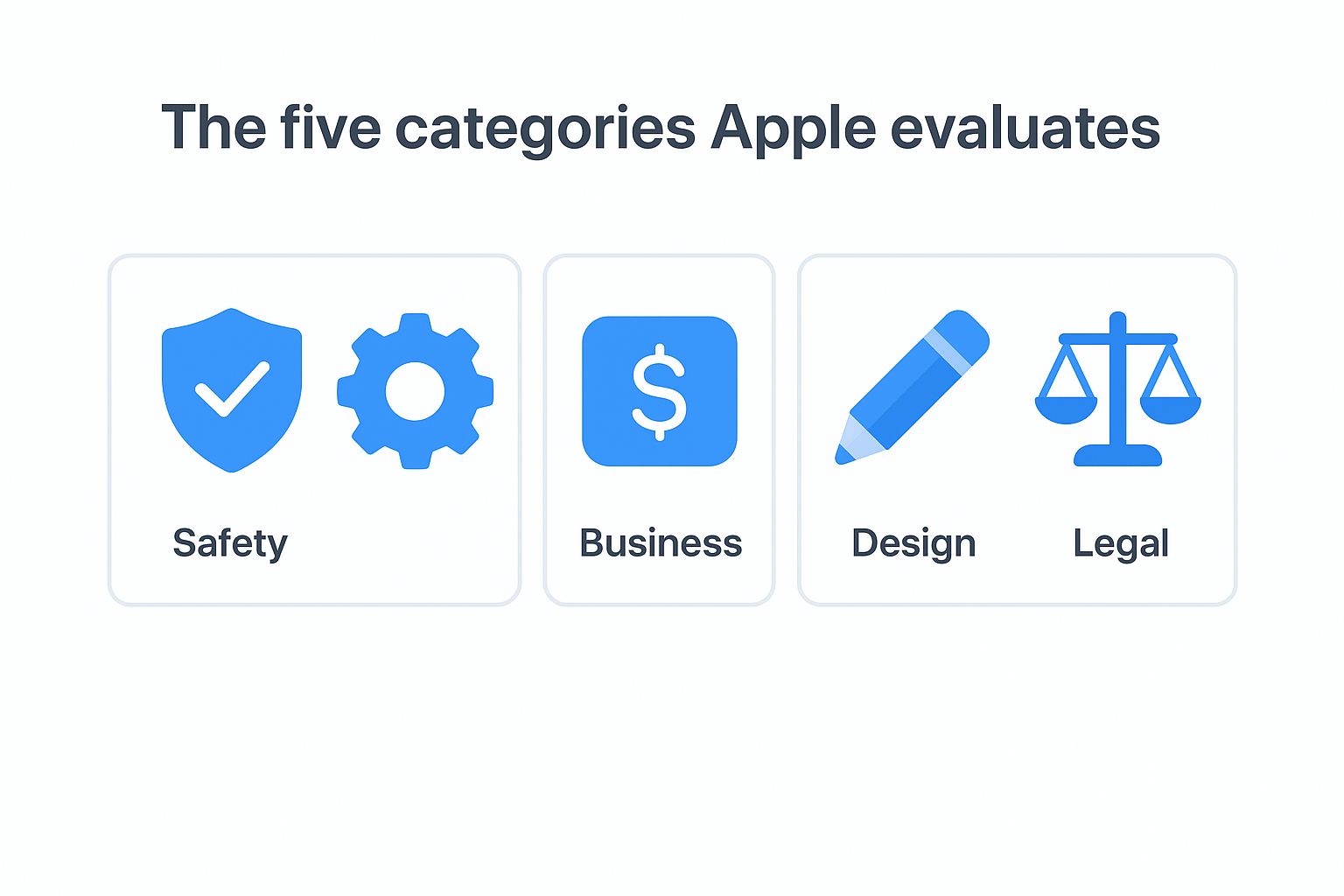
Apple organizes its guidelines into five distinct sections, and each one carries real rejection weight. Safety covers user protection, objectionable content, and data handling. Performance focuses on completeness, beta software restrictions, and accurate metadata. The Business section addresses monetization models, subscriptions, and in-app purchase requirements. Design covers your app's UI standards, functionality, and correct use of Apple frameworks. The Legal section governs intellectual property, gambling rules, privacy policies, and compliance with local laws in every market you target.
When you submit an app to Apple, it goes through a few checks to make sure it's okay. First, computers look at it to see if it breaks any rules or has any bad stuff like malware. If it passes those checks, a real person takes a look. They test it on actual devices to see if it follows the rules. This way, Apple can make sure everything in their store is safe and works well. The computers check for things like policy violations, malware, and metadata issues as soon as the app is uploaded. If it's all good, the human reviewer takes over and tests it on different devices to make sure it meets the guidelines.
When you send in your app for review, you can usually expect to hear back within a day or two. But, if your app has things like in-app purchases or login features, it might take a bit longer. That's because the reviewers need to test those parts out manually to make sure everything works okay. If your app deals with sensitive stuff like health info, money, or kids' content, be prepared to wait a bit longer. The reviewers will want to take a closer look to make sure everything is safe and secure. So, make sure you include clear and detailed notes for the reviewer, it will help them understand your app better and speed up the process.
What triggers a more thorough review
Some things can make your app go through a more thorough check. If you want to use things like live activities, send push notifications, get location access, or run tasks in the background, the people checking your app will need to make sure you're doing it right and that it matches what you said you'd do in your privacy information. If your app wants to use sensitive parts of the device, like the camera, microphone, or contacts, it will get an even closer look by default.
Beyond technical triggers, content and monetization flags matter too. If your app includes user-generated content, social networking features, or any form of virtual goods and currency, reviewers will test those flows directly rather than just scanning the build. New developer accounts also attract more attention than established accounts with clean submission histories. Knowing these triggers upfront lets you prepare the right documentation and reduce the time reviewers spend guessing about how your app is supposed to work.
Step 1. Map your app to the right guideline sections
Before you open App Store Connect, you need to know which parts of the Apple App Store review guidelines actually apply to your app. Apple publishes guidelines across dozens of subsections, but not every rule applies to every app. Mapping your app's specific features to the relevant guideline sections early in development lets you build for compliance rather than scramble to fix issues after a rejection.
Identify your app type and its review triggers
Your app's category and core features determine which guideline sections reviewers will examine most closely. A fintech app that handles payments triggers Business section rules around in-app purchases, along with Legal requirements for financial service disclosures. A kids' app that includes ads immediately pulls in Safety section 1.3 on kids' categories and Design guidelines covering third-party analytics restrictions. Knowing this before you write a line of code means you design with the right constraints from the start.
Reviewers test the specific user paths that correspond to your app's declared features, so every feature you ship needs a mapped guideline before it ships.
| App Type | Primary Guideline Sections |
|---|
| Fintech / Payments | Business 3.1, Legal 5.2, Safety 5.1 |
| Health and Medical | Safety 1.1, Legal 5.0, Performance 2.1 |
| Kids / Family | Safety 1.3, Design 4.0, Legal 5.1 |
| Social / UGC | Safety 1.2, Business 3.2, Legal 5.1 |
| Gaming with IAP | Business 3.1, Legal 5.2, Design 4.1 |
Build a feature-to-guideline reference before you submit
Once you know your app type, create a simple checklist that maps each feature to its corresponding guideline number. For example, if your app uses push notifications, link that feature directly to Performance guideline 2.5.3. If you include a subscription flow, map it to Business guidelines 3.1.2 through 3.1.3. If your app requests location access, connect that directly to Privacy guideline 5.1.1.
This reference document serves two practical purposes: it keeps your development team aligned on compliance requirements during the build, and it gives you a ready-made foundation for the reviewer notes you'll write at submission time. Teams that skip this step typically catch guideline violations only after receiving rejection feedback, which adds multiple days to the approval cycle and often requires code changes that could have been avoided entirely.
Step 2. Pass fast rejection checks on quality and safety
Apple's automated and human reviewers both look for basic quality and safety issues before they evaluate anything else. These are the fastest rejection triggers, and they're also the most avoidable. The Apple App Store review guidelines under Performance section 2 and Safety section 1 cover the specific standards your app must meet before reviewers even get to privacy or monetization.
Check your app for crashes and incomplete features
Reviewers test your app on real hardware, and if it crashes during a core user flow, you get rejected immediately, no secondary review. Before you submit, run your build through every primary path a user would take: onboarding, login, main feature use, and logout. Test on at least two different iOS versions and two device sizes to catch environment-specific issues.
Apple treats placeholder content, broken links, and demo-mode features the same way it treats crashes. If something doesn't work in the build you submit, it counts as incomplete.
Your build needs to pass each item on this checklist before submission:
- App launches without crashing on the minimum iOS version you declared
- All buttons and navigation elements respond correctly
- No placeholder text, lorem ipsum, or "coming soon" screens visible to the reviewer
- Every declared feature is fully functional, not mocked or behind a flag
- App performs correctly without a network connection if you declared offline support
Review content against Apple's safety requirements
When you're getting your app ready for the store, there's a safety section you need to pay attention to. This part of the guidelines talks about a few important things: what kind of content is not allowed, how to keep users safe, and some special rules for apps that are meant for kids. Here's the thing: Apple doesn't just look at the information you provide about your app, they actually check what's inside the app itself. So, if your app has pictures, words, or anything else that users see that could be considered bad, offensive, or confusing, it won't pass the check. This is true even if the code behind your app is perfect.
Run through your app's content with these specific filters before submitting:
- No violent, graphic, or sexually explicit content unless your age rating explicitly allows it
- No content that encourages illegal activities or self-harm
- If your app targets children under 13, confirm it has no third-party advertising, analytics SDKs, or social login integrated
- All content visible during reviewer testing matches the age rating you selected in App Store Connect
Make sure you get your app's age rating right. Apple has a questionnaire in App Store Connect that helps you figure out the right rating. If you rate your app too low, Apple might flag it for safety issues, and that means you'll have to resubmit it, which can be a real hassle. So, take the time to get it right the first time.
Step 3. Get privacy, tracking, and data sharing right
Privacy is one of the most common rejection triggers in the Apple App Store review guidelines, and it's also the area where teams underestimate how much detail Apple requires. You need to get three things right: your privacy nutrition label in App Store Connect, your App Tracking Transparency implementation, and the accuracy between what you declare and what your app actually does. Apple's reviewers cross-check all three, and any mismatch results in rejection.
Fill out your privacy nutrition label accurately
Your privacy nutrition label lives in App Store Connect, and every data type your app collects must appear there, including data collected through third-party SDKs you've integrated. Many teams forget that SDKs like analytics tools, crash reporters, and advertising networks collect data on your behalf. Apple holds you responsible for that data collection regardless of which library generates it.
If your privacy label says you collect no data, but your app includes a third-party analytics SDK that collects device identifiers, Apple will reject your submission.
Use this checklist to audit your privacy label before submission:
- List every data type collected directly by your app (name, email, location, device ID, usage data, etc.)
- Check every third-party SDK in your dependencies and add their collected data types to your label
- Specify the correct purpose for each data type (analytics, app functionality, developer advertising, etc.)
- Mark data as "linked to identity" if it connects to a user account or profile
- Confirm your privacy policy URL is live, accessible, and describes everything in your label
Handle tracking and ATT framework correctly
So, if your app is tracking users when they're using other companies' apps or websites, and it's all for advertising, you need to use Apple's App Tracking Transparency framework. This means you have to show users a special permission prompt, which is provided by the system, before you can start tracking them. You can't try to get users to enable tracking by showing them your own custom prompt or a screen that looks like the system dialog, that's not allowed. You have to use the real system prompt, and you have to show it to users before you start tracking them. This is all about being transparent with users and giving them control over their own data.
Your ATT prompt needs to include a clear, honest purpose string in your Info.plist that explains exactly why you're requesting tracking permission. Generic phrases like "to improve your experience" will fail the review. Write something specific, such as "to show you relevant ads based on your activity in other apps." Apple reviewers read these strings directly, and vague language is a fast path to rejection. Get this string right the first time and save yourself a full resubmission cycle.
Step 4. Make subscriptions and in-app purchases review-proof
Monetization is one of the most scrutinized areas of the Apple App Store review guidelines. If your app sells digital goods, subscriptions, or premium features, every part of that purchase flow needs to match Business section 3.1 requirements exactly. Apple's reviewers test purchase flows manually, so any missing button, misleading pricing display, or non-Apple payment method triggers an immediate rejection with no secondary review opportunity.
Set up your in-app purchase flows correctly
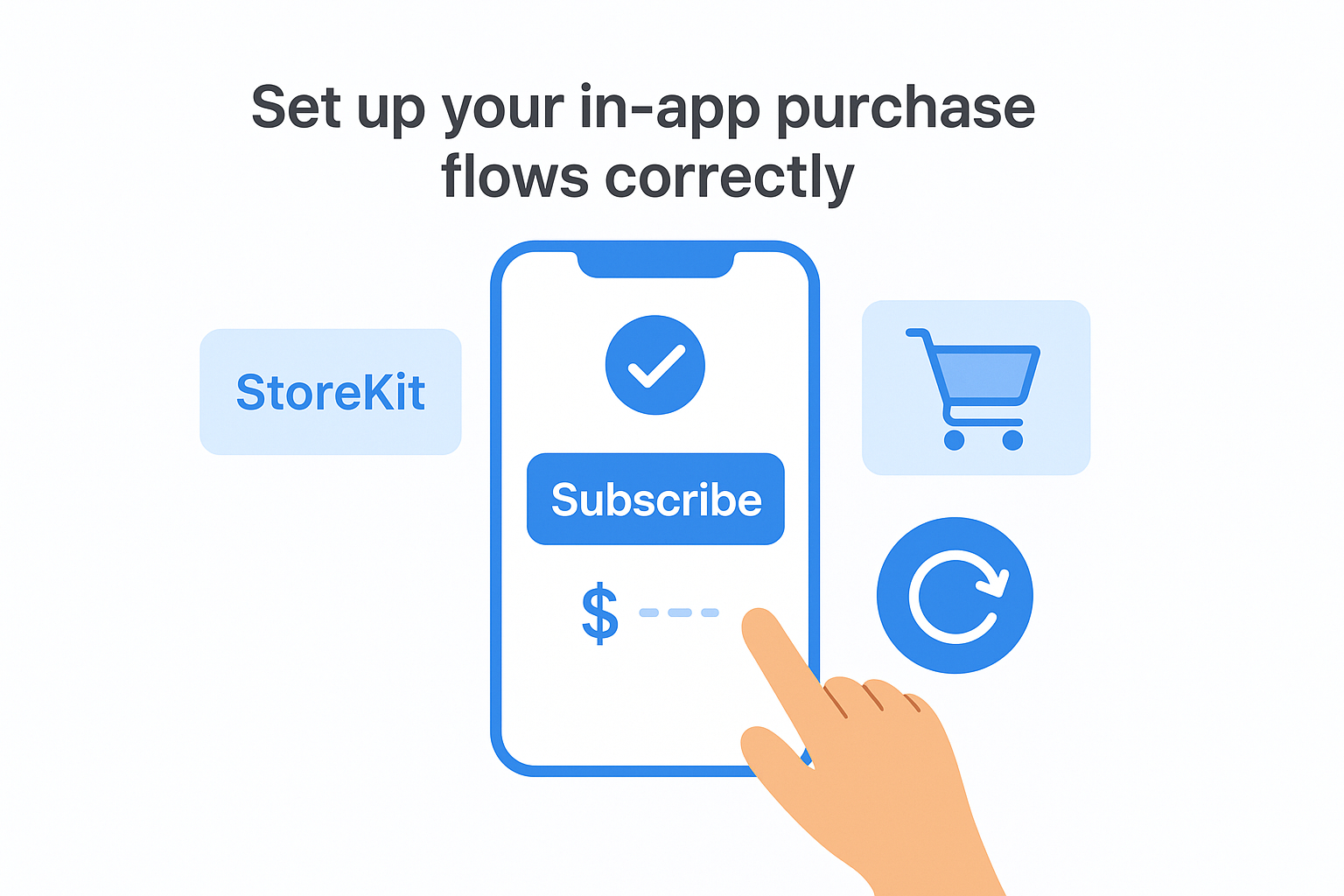
Your app must use Apple's StoreKit framework for all digital goods and subscriptions sold within the app. You cannot direct users to a website to complete a purchase that should go through the App Store, and you cannot include buttons or links that route around Apple's payment system. Any attempt to do so results in rejection under Business guideline 3.1.1.
If your app uses a "free trial" label, that trial must be backed by an actual StoreKit subscription product with a defined introductory offer period, not a custom timer you built yourself.
Before you submit, confirm your purchase flows meet each of these requirements:
- All digital content and features are available through StoreKit products registered in App Store Connect
- No external payment links, mentions of other platforms, or "sign up on our website" prompts appear inside the app
- A Restore Purchases button is visible and functional on any screen where purchases are offered
- Subscription pricing, duration, and auto-renewal terms display clearly before the user confirms a purchase
- Introductory offer eligibility follows Apple's rules for new subscribers only
Display subscription terms where Apple requires them
When you're setting up a subscription purchase button for an Apple app, you need to include some specific information right next to it. This isn't something you can skip - Apple's reviewers will check for it every time they look at a subscription app. The details you have to show are the price of the subscription, how often you'll be billed, and a warning that the subscription will keep renewing automatically unless the user cancels it. All of this has to be visible before the user confirms their purchase.
Use this template as your baseline disclosure text:
[Price] per [period]. Automatically renews unless cancelled at least
24 hours before the end of the current period. Manage or cancel your
subscription in your App Store account settings.
Place this text directly adjacent to your subscribe button, not buried in a terms screen. Reviewers flag disclosures that require extra taps to find, so make the terms visible without any additional navigation required.
Step 5. Align metadata, screenshots, and in-app experience
Metadata mismatches are a faster rejection path than most developers expect. The Apple App Store review guidelines require that your app's name, subtitle, description, screenshots, and preview videos all accurately reflect what the reviewer finds when they open the actual build. Apple treats any discrepancy between your App Store listing and your in-app experience as a Performance section 2.3 violation, and reviewers are trained to spot them.
Match your screenshots and preview videos to actual functionality
Your screenshots must show real screens from your current build, not design mockups, marketing renders, or screens from a previous version of the app. If your screenshot shows a feature that the reviewer cannot find inside the app during testing, you will get rejected. This applies to preview videos too. Any flow shown in a video must be fully functional in the submitted build.
eviewers compare your screenshots directly against the app they test, so any screen that looks different from the live build is a liability.
Run through this checklist before uploading your visual assets:
- Every screenshot reflects the current UI, not a redesigned version you plan to ship later
- No text overlays or callouts in screenshots reference features not present in the build
- Preview videos show only actual in-app footage, not animations or simulations of the user experience
- Screenshots for each device size (iPhone, iPad if applicable) match the correct screen dimensions
- No competitor app names, logos, or screenshots appear in your visual assets
Write metadata that matches what reviewers see inside the app
Your app name, subtitle, and description must describe what your app actually does, not what you plan to add in a future update. If your description mentions a specific feature, that feature must be live and accessible during reviewer testing. Teams that write aspirational copy for launch and submit a build that has not caught up to that copy will fail Performance guideline 2.3.3 on accurate metadata.
Check your keyword field and subtitle against your app's real functionality before you submit. Keywords that describe features your app does not have count as misleading metadata and trigger the same rejection as inaccurate screenshots. Write your subtitle to reflect your app's primary function in plain, factual language. Avoid superlatives like "best" or "fastest," since reviewers flag those as unsubstantiated claims. Your description should read as an accurate feature summary, not a promotional pitch aimed at converting users who have not yet downloaded the app.
Step 6. Handle UGC, age ratings, and moderation
Apps that allow users to generate content, post publicly, or interact with other users face some of the highest rejection rates across all app categories. The Apple App Store review guidelines treat user-generated content as a direct extension of your app's safety profile, which means Apple holds you responsible for what users can post, share, or send through your product. Before you submit, you need to handle two things correctly: your age rating selection and your content moderation infrastructure.
Set your age rating based on actual content
When you submit your app, don't think of the age rating as just a way to market it. Apple actually figures it out based on the answers you give to a questionnaire in App Store Connect. Then, their reviewers double-check that the rating you chose matches what's actually inside the app when they test it. So, if your app lets users post things, comment, or add profile pictures, and you say it's for everyone 4 and up, or 9 and up, it will probably get rejected. This is because even if you don't mean for it to happen, users might end up sharing mature or harmful content, and that's not okay.
If your app includes any feature where users can interact with strangers or share content publicly, Apple expects you to rate it 17+ unless you have active moderation systems that make lower ratings defensible.
Use this table to match your UGC feature set to the correct minimum age rating:
| UGC Feature | Minimum Recommended Rating |
|---|
| Private messaging between known contacts | 9+ |
| Public posts visible to all users | 17+ |
| Anonymous posting or commenting | 17+ |
| Profile photos set by users | 12+ |
| Community forums or public feeds | 17+ |
Build moderation into your UGC features before submission
Apple requires that any app with user-generated content includes a working moderation system before the build ships. This is not a post-launch item you can add in version 1.1. Reviewers will test your reporting flow directly, so the mechanism needs to be functional, visible, and easy to reach from within the content itself.
Your moderation setup must cover three specific requirements to satisfy Apple's review team. First, users must be able to report offensive or inappropriate content from inside the app with no more than two taps. Second, you need a mechanism to block other users that works correctly during reviewer testing. Third, your terms of service or community guidelines must be accessible inside the app and must prohibit objectionable content explicitly. Link to them from your onboarding screen or your profile settings menu so the reviewer can find them without digging.
Step 7. Prepare review notes, demo access, and test data
The review notes field in App Store Connect is one of the most underused tools in the submission process, and skipping it is a mistake that costs teams days of back-and-forth. Apple's reviewers test dozens of apps per day, and any app that requires setup steps, special credentials, or non-obvious navigation to reach its core features will frustrate the reviewer before they even evaluate it against the apple app store review guidelines. You write the notes once and save yourself a rejection.
Write review notes that actually help the reviewer
Your review notes should function as a brief technical guide for someone seeing your app for the first time. Explain anything that is not immediately obvious: how to reach paywalled features, which flows require an account, and any region-locked or permission-dependent functionality the reviewer needs to test. Treat these notes as instructions for a capable tester, not marketing copy.
The more clearly you explain your app's non-obvious flows, the less time the reviewer spends guessing, and the faster your submission moves through the queue.
Use this template as the foundation for your review notes:
App Overview:
[One sentence describing what the app does and who it's for.]

Demo Account:
Username: reviewer@yourdomain.com
Password: ReviewPass2026!

Key Flows to Test:
1. [Feature name], Navigate to [screen] and tap [button].
2. [Feature name], Log in first, then go to [section].
3. [In-app purchase], Use the sandbox environment; no real charge occurs.

Special Notes:
- [Any backend dependency, server status, or feature flag to be aware of.]
- [Any permission prompts that appear and why they're necessary.]
Set up demo credentials and test data before you submit
Your demo account must be pre-loaded with realistic test data so the reviewer does not have to create content from scratch to see your app in a functional state. An empty account that shows blank screens or "no results" states gives reviewers nothing to evaluate and increases the chance they misinterpret incomplete states as broken features.
Create a dedicated reviewer account in your staging or production environment with sample content already in place: example posts, saved items, completed profile fields, and any onboarding steps already finished. If your app connects to external data sources or requires a backend, confirm that the server your demo account hits is stable and will not go down during the review window. Test the credentials yourself the day before you submit to make sure they work on a clean device.
Step 8. Respond to feedback, appeal smartly, and resubmit
When Apple rejects your app, the rejection notice lands in App Store Connect with a specific guideline number and a short description of the issue. Most developers read this quickly, fix the obvious surface problem, and resubmit without addressing the root cause. That approach leads to a second rejection, sometimes for the same reason. The apple app store review guidelines give reviewers a structured framework for feedback, and your response needs to match that same level of structure.
Read the rejection notice carefully before you do anything
When you get a rejection notice, it's linked to a specific part of the guidelines. Apple normally explains the problem clearly, so you can find exactly where it's happening in your app. Before you start coding or changing anything, read the notice carefully - twice, if you have to. Make sure you understand if it's just one issue or several, because sometimes Apple groups a few problems together in one notice and they want you to fix all of them before you can resubmit. When you've gone through each point in the notice, make the necessary changes and keep track of what you've done. Write down each change you make and the part of the guidelines it relates to. This record will be what you send back when you respond to the issue in the App Store Connect Resolution Center.
Appeal the right way when you disagree
Sometimes Apple's reviewer misunderstands your app's functionality or flags a feature that actually complies with the guidelines. In those cases, you can submit an appeal through the Resolution Center rather than changing your build. Write your appeal as a factual correction, not a complaint. Reference the specific guideline number, explain what the reviewer observed, and describe why your implementation meets the requirement.
Use this template as your appeal foundation:
Re: Guideline [X.X.X] - [Category Name]

We reviewed the feedback and want to clarify how [feature name] works.

[One sentence explaining what the reviewer observed.]

Our implementation does the following: [specific technical explanation].

This approach complies with Guideline [X.X.X] because [direct reason].

We have attached [screenshots / screen recording] to support this.
Keep your appeal under 300 words and attach a screen recording if the disputed feature requires visual context. Reviewers move faster when the evidence is in front of them rather than described in text.